Docker for Beginners: From Code to Container and Cloud

Introduction: From Running Images to Building Your Own
In the previous article, you ran containers from images that already existed.
hello-world came from Docker.
nginx came from Docker Hub.
That was the right place to start. It showed you how Docker can pull an image, create a container, start an application, expose a port, and manage the container lifecycle.
Now we are going to take the next step.
Instead of running an image someone else created, we are going to build our own image from our own application.
That changes the role Docker plays.
So far, Docker has been something you use to run software. In this article, Docker becomes part of how you package and ship software.
The flow will look like this:
Application code
→ Dockerfile
→ Docker image
→ Docker container
→ Container registry
→ Cloud
We will keep the application simple: a small Node.js web app that shows a page in the browser. The app itself is not the main lesson. It is just real enough to give Docker something useful to package.
By the end of this article, you will have:
Created a small Node.js application
Written a Dockerfile for it
Built your own Docker image
Run that image locally as a container
Pushed the image to Azure Container Registry
Deployed it to Azure Container Instances
That is the full path from code to container and then to the cloud.
The important shift is this:
You are no longer only running containers.
You are creating the images those containers run from.
What We Are Building
Before we write a Dockerfile, we need something to package.
We will build a small Node.js web application. It will run an Express web server on port 3000 and return a simple page in the browser.
The application is deliberately small.
That is important because this article is not about learning Node.js, Express, HTML, or CSS. The goal is to understand the Docker workflow:
Application code
→ Dockerfile
→ Docker image
→ Docker container
→ Registry
→ Cloud
So the app only needs to do a few things:
Start a web server
Listen on port 3000
Return a visible page in the browser
Use a real dependency, Express
That gives us enough to make the Dockerfile meaningful without distracting from the container lesson.
The project will look like this:
color-app/
├── app.js
├── package.json
└── Dockerfile
app.js will contain the web application.
package.json will describe the Node.js dependency.
Dockerfile will describe how Docker should package and run the application.
The path is simple:
First, we create the app.
Then, we write the Dockerfile.
Then, we build and run the image.
That keeps the focus where it belongs: turning application code into a container image.
Create the Sample Node.js App
First, create a new folder for the project:
mkdir color-app
cd color-app
Now create a package.json file:
{
  "name": "color-app",
  "version": "1.0.0",
  "description": "A small Node.js app for learning Docker",
  "main": "app.js",
  "scripts": {
    "start": "node app.js"
  },
  "dependencies": {
    "express": "^4.18.3"
  }
}
This file does two important things.
First, it defines a start script:
"scripts": {
  "start": "node app.js"
}
That means when we run:
npm startnpm looks inside package.json, finds the start script, and runs:
node app.jsSecond, it declares one dependency: express. Express is the small web framework we will use to serve the page.
Now create a file called app.js:
const express = require("express");

const app = express();
const port = process.env.PORT || 3000;

app.get("/", (req, res) => {
  res.send(`
    <!doctype html>
    <html>
      <head>
        <title>Docker Color App</title>
        <style>
          body {
            font-family: Arial, sans-serif;
            background: #e0f2fe;
            color: #0f172a;
            display: grid;
            place-items: center;
            min-height: 100vh;
            margin: 0;
          }

          main {
            text-align: center;
            background: white;
            padding: 2rem;
            border-radius: 1rem;
            box-shadow: 0 10px 30px rgba(15, 23, 42, 0.15);
          }
        </style>
      </head>
      <body>
        <main>
          <h1>Hello from a Dockerized Node.js app</h1>
          <p>This page is served by Express inside a container.</p>
        </main>
      </body>
    </html>
  `);
});

app.listen(port, () => {
  console.log(`Color app listening on port ${port}`);
});
This is a small Express application.
It listens on port 3000 by default and returns a simple HTML page. The CSS is only there to make the page easy to recognise in the browser.
Before we involve Docker, test the app locally.
Install the dependency:
npm installStart the app:
npm startYou should see output like this:
Color app listening on port 3000Now open your browser and go to:
http://localhost:3000You should see the sample page.
At this point, we have a working application.
Now the Docker question becomes:
How do we package this application and its Node.js environment into an image?That is what the Dockerfile is for.
What a Dockerfile Does
At this point, we have a working Node.js application.
You can run it locally with:
npm startBut that still depends on your machine having the right Node.js version, the right npm setup, and the right dependencies installed.
Docker gives us a way to package that environment.
That is the job of a Dockerfile.
A Dockerfile is a set of instructions that tells Docker how to build an image for your application. It describes the environment the app needs, what files should go into the image, which dependencies should be installed, and what command should run when the container starts.
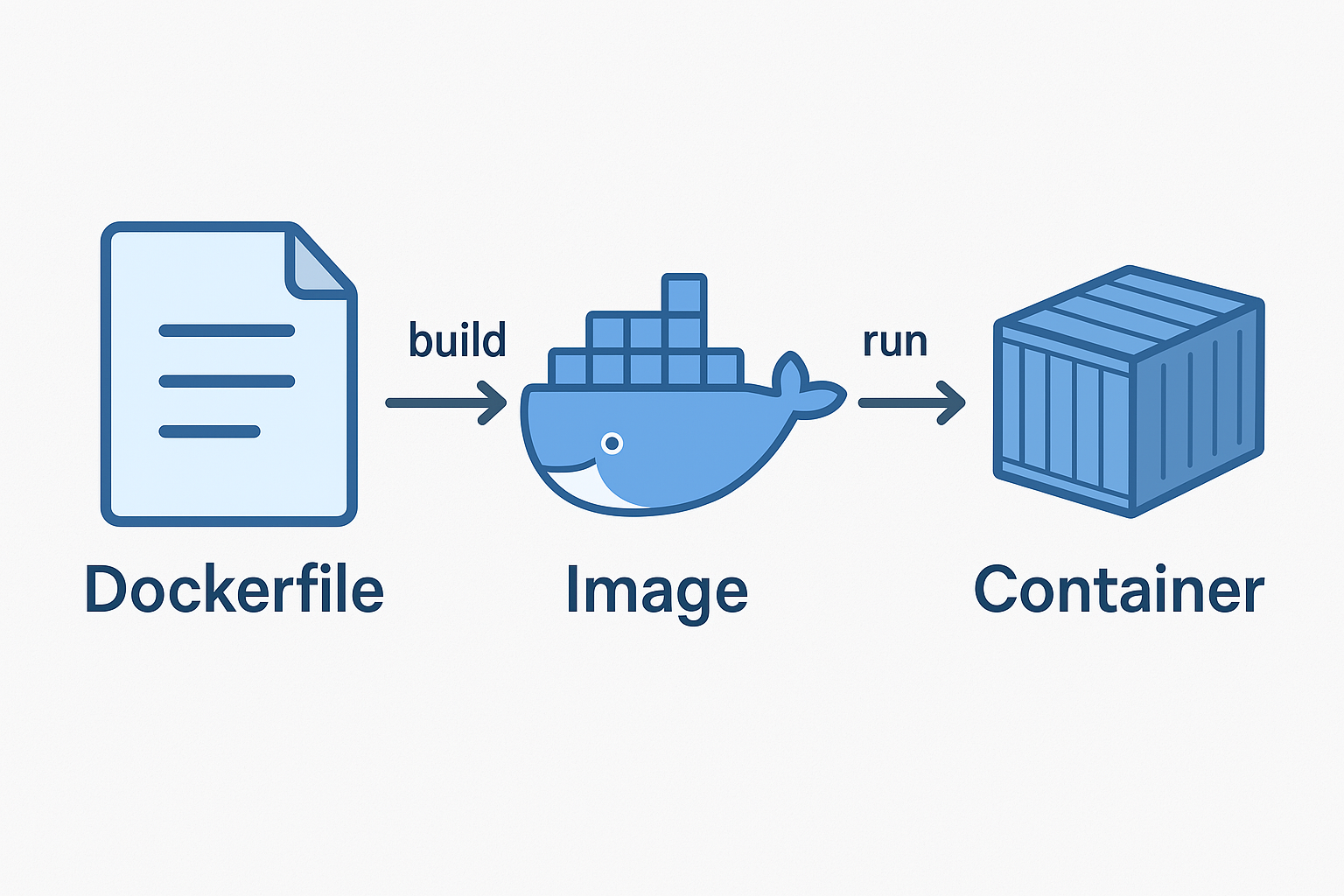
The relationship looks like this:
Dockerfile
→ docker build
→ Docker image
→ docker run
→ Docker container
The Dockerfile is the recipe.
The Docker image is the packaged result.
The container is the running application created from that image.
So for our Node.js app, the Dockerfile needs to answer a few questions:
- What should the image start from?
- Where should the app live inside the image?
- Which files should be copied in?
- How should dependencies be installed?
- Which port does the app use?
- What command starts the app?
Once those questions are answered, Docker can build the image the same way every time.
That is the value of a Dockerfile.
It turns “here are the setup steps for my app” into a repeatable build process.
Write the Dockerfile
Now we are ready to write the Dockerfile.
Create a file called Dockerfile in the same folder as app.js and package.json.
No file extension. Just:
DockerfileA Dockerfile is usually built from top to bottom, so we will write it in the same order Docker will read it.
Start from a base image
The first question is:
What should our image start from?We are building a Node.js application, so we do not need to start from an empty Linux system and install Node ourselves.
Instead, we can start from an existing Node.js image:
FROM node:22This is called a base image.
A base image gives your image a starting point. In this case, node:22 already includes Node.js 22 and the tools needed to run a Node application.
So our image will be:
Node.js base image
+ our application files
+ our dependencies
+ our startup command
That is an important Docker idea. Creating your own image usually means building on top of an existing image, not starting from zero.
Set the working directory
Next, we tell Docker where the application should live inside the image:
WORKDIR /usr/src/appThis creates or uses the /usr/src/app folder inside the image and makes it the default location for the instructions that follow.
It is like saying:
From now on, work inside this folder.Copy the dependency files first
Now copy the dependency files into the image:
COPY package*.json ./This copies package.json and, if it exists, package-lock.json into the current working directory inside the image.
We copy these files first because they describe the app’s dependencies.
Install the dependencies
Now install the Node.js dependencies:
RUN npm installThis runs during the image build.
It reads package.json, downloads the dependencies, and places them inside the image.
Copy the application code
Now copy the rest of the application files:
COPY . .This copies the files from your project folder into the image.
At this point, the image has the Node.js runtime, the dependencies, and the application code.
Document the port
Our Express app listens on port 3000, so we document that in the Dockerfile:
EXPOSE 3000EXPOSE does not publish the port to your machine by itself. It is documentation inside the image that says:
This application expects to listen on port 3000.When we run the container later, we will still use -p to publish the port.
Set the startup command
Finally, tell Docker what command to run when a container starts from this image:
CMD ["npm", "start"]This uses the start script from package.json, which runs:
node app.jsThe complete Dockerfile
Your full Dockerfile should look like this:
FROM node:22

WORKDIR /usr/src/app

COPY package*.json ./

RUN npm install

COPY . .

EXPOSE 3000

CMD ["npm", "start"]
Read it from top to bottom:
Start from Node.js 22.
Create a working folder.
Copy dependency files.
Install dependencies.
Copy the app code.
Document port 3000.
Start the app with npm start.
That is enough to package our application into a Docker image.
Build the Docker Image
Now that we have a Dockerfile, we can build our image.
Make sure you are still inside the project folder:
color-app/
├── app.js
├── package.json
└── Dockerfile
Now run:
docker build -t color-app .There are two important parts in this command.
-t color-app gives the image a name, or tag, so we can refer to it later as color-app.
The final . tells Docker to use the current folder as the build context.
The build context is the set of files Docker can see while building the image. In this case, the current folder contains our Dockerfile, package.json, and app.js, so Docker has everything it needs.
When you run the build, Docker reads the Dockerfile from top to bottom:
FROM node:22
→ start from the Node.js image

WORKDIR /usr/src/app
→ create and use the app folder inside the image

COPY package*.json ./
→ copy dependency files

RUN npm install
→ install dependencies

COPY . .
→ copy the application code

EXPOSE 3000
→ document the application port

CMD ["npm", "start"]
→ define the startup command
You will see Docker stepping through each instruction. The first build may take a little while because Docker needs to pull the node:22 base image and install the dependencies.
When the build finishes, check that the image exists:
docker imagesYou should see an image called color-app in the list:
REPOSITORY   TAG       IMAGE ID       CREATED          SIZE
color-app    latest    abc123def456   20 seconds ago   1.1GB
Your image ID and size will be different. That is fine.
The important thing is that we now have our own Docker image.
We have moved from this:
Application code + Dockerfileto this:
Docker image: color-appNext, we will run that image as a container.
Run Your Image as a Container
Now that we have an image called color-app, we can run it as a container.
Run:
docker run -d -p 3000:3000 --name color-app-container color-appThere are a few important parts in this command.
color-app is the image we want to run.
--name color-app-container gives the container a friendly name. If we do not provide a name, Docker will generate a random one.
-d runs the container in detached mode, so it keeps running in the background.
-p 3000:3000 publishes the container port to your machine.
The first 3000 is the port on your machine.
The second 3000 is the port inside the container.
So the mapping means:
localhost:3000 on your machine
→ port 3000 inside the container
Now open your browser and go to:
http://localhost:3000You should see the sample page from the Node.js application.
That means Docker is now running your own image as a container.
You can check the running container with:
docker psYou should see color-app-container in the output.
If you want to see the application logs, run:
docker logs color-app-containerYou should see something like:
Color app listening on port 3000When you are finished testing, stop the container:
docker stop color-app-containerThen remove it:
docker rm color-app-containerStopping the container turns off the running application.
Removing the container deletes that container instance.
The image still remains on your machine, so you can create a new container from it again whenever you want:
docker run -d -p 3000:3000 --name color-app-container color-appThat is the same pattern you learned earlier:
Image → run as → ContainerBut this time, the image is yours.
Push the Image to Azure Container Registry
At this point, the image works on your machine.
That is a big step, but the image is still local. If another machine needs to run it, that machine needs a way to get the image.
That is what a container registry is for.
A registry stores container images so they can be pulled somewhere else: another developer’s machine, a CI/CD pipeline, a Kubernetes cluster, or a cloud service.
For this walkthrough, we will use Azure Container Registry, or ACR.
First, set a few variables:
RESOURCE_GROUP="rg-color-app-demo"
LOCATION="australiaeast"
ACR_NAME="<choose-a-globally-unique-acr-name>"
IMAGE_NAME="color-app"
IMAGE_TAG="1.0"
The ACR name must be globally unique across Azure and can only contain lowercase letters and numbers. For example:
ACR_NAME="colorappdemo12345"Now create the resource group:
az group create \
  --name $RESOURCE_GROUP \
  --location $LOCATION
Create the Azure Container Registry:
az acr create \
  --resource-group $RESOURCE_GROUP \
  --name $ACR_NAME \
  --sku Basic
Now sign in to the registry:
az acr login \
  --name $ACR_NAME
Before we can push the image, we need to tag it with the registry name.
Get the registry login server:
ACR_LOGIN_SERVER=$(az acr show \
  --name $ACR_NAME \
  --query loginServer \
  --output tsv)
Now tag the local image:
docker tag $IMAGE_NAME $ACR_LOGIN_SERVER/$IMAGE_NAME:$IMAGE_TAGThis does not create a new image from scratch. It gives the existing image another name that includes the registry address.
The image now has a name like this:
<acr-name>.azurecr.io/color-app:1.0That full name tells Docker where the image should be pushed.
Now push the image to Azure Container Registry:
docker push $ACR_LOGIN_SERVER/$IMAGE_NAME:$IMAGE_TAGWhen the push finishes, the image is no longer only on your machine. It is stored in Azure Container Registry and can be pulled by other environments.
You can confirm it is there with:
az acr repository list \
  --name $ACR_NAME \
  --output table
You should see:
Result
---------
color-app
You can also check the tags for the image:
az acr repository show-tags \
  --name $ACR_NAME \
  --repository $IMAGE_NAME \
  --output table
You should see:
Result
------
1.0
At this point, we have moved from a local image to a shared image in a registry:
Local Docker image
→ tagged with registry address
→ pushed to Azure Container Registry
Next, we will run that image in the cloud using Azure Container Instances.
Deploy the Container to Azure Container Instances
Now that the image is stored in Azure Container Registry, we can run it somewhere other than your machine.
For this walkthrough, we will use Azure Container Instances, or ACI.
ACI is a simple way to run a container in Azure without creating a virtual machine or a Kubernetes cluster. You give Azure a container image, some basic settings, and Azure runs the container for you.
Because our image is stored in a private Azure Container Registry, ACI needs permission to pull it.
For this beginner walkthrough, we will use ACR admin credentials to keep the deployment simple. In production, you would normally use a managed identity or another controlled authentication approach.
First, enable the ACR admin user:
az acr update \
  --name $ACR_NAME \
  --admin-enabled true
Now get the registry username:
ACR_USERNAME=$(az acr credential show \
  --name $ACR_NAME \
  --query username \
  --output tsv)
Get the registry password:
ACR_PASSWORD=$(az acr credential show \
  --name $ACR_NAME \
  --query "passwords[0].value" \
  --output tsv)
Now deploy the container to Azure Container Instances:
az container create \
  --resource-group $RESOURCE_GROUP \
  --name color-app-container \
  --image $ACR_LOGIN_SERVER/$IMAGE_NAME:$IMAGE_TAG \
  --registry-login-server $ACR_LOGIN_SERVER \
  --registry-username $ACR_USERNAME \
  --registry-password $ACR_PASSWORD \
  --dns-name-label color-app-demo-12345 \
  --ports 3000 \
  --os-type Linux
The --image value points to the image we pushed to Azure Container Registry:
<acr-name>.azurecr.io/color-app:1.0The registry login server, username, and password allow ACI to pull the image from the private registry.
The --dns-name-label gives the container a public DNS name. This value must be unique within the Azure region, so replace color-app-demo-12345 with something unique.
The --ports 3000 flag opens port 3000 on the container instance because our Node.js app listens on port 3000.
When the deployment finishes, get the public address:
az container show \
  --resource-group $RESOURCE_GROUP \
  --name color-app-container \
  --query ipAddress.fqdn \
  --output tsv
You should see a hostname that looks something like this:
color-app-demo-12345.australiaeast.azurecontainer.ioOpen it in your browser with port 3000:
http://color-app-demo-12345.australiaeast.azurecontainer.io:3000You should see the same sample page you tested locally.
That is the full journey:
Local application code
→ Docker image
→ Local container
→ Azure Container Registry
→ Azure Container Instances
→ Running container in the cloud
The application is no longer only running on your machine. Azure is now running a container from the image you built.
Clean Up Azure Resources
This walkthrough creates real Azure resources:
Azure Container Registry
Azure Container Instances
Related networking and public DNS resources
When you are finished testing, it is worth cleaning them up so you do not leave anything running.
Because we created everything inside one resource group, cleanup is simple. Delete the resource group:
az group delete \
  --name $RESOURCE_GROUP \
  --yes \
  --no-wait
The --yes flag skips the confirmation prompt.
The --no-wait flag returns control to your terminal immediately while Azure deletes the resources in the background.
This removes the Azure Container Registry, the Azure Container Instance, and the related resources created for this demo.
If you want to confirm the deletion later, run:
az group show \
  --name $RESOURCE_GROUP
If the resource group has been deleted, Azure will return an error saying it could not be found.
Where This Leads
You have now built and shipped your own container image.
That is a major step.
You did not just run hello-world or nginx anymore. You created an application, described its environment in a Dockerfile, built an image, ran it locally, pushed it to a registry, and deployed it to the cloud.
That gives you the core Docker delivery path:
Build the image
→ run it locally
→ push it to a registry
→ run it somewhere else
But there is still more to understand.
So far, we have mostly treated the container as a single running application. That is useful, but real applications often need to communicate with other containers.
A frontend might call an API.
An API might connect to a database.
A background worker might talk to a queue.
That raises the next question:
How do containers talk to each other?That is where Docker networking comes in.
In the next article, we will move from one container to multiple containers. We will create a Docker network, run containers on that network, let them find each other by name, and then look at how port publishing connects containers to the outside world.
So far, you have learned how to package and run an application.
Next, you will learn how containers connect.