Terraform Remote State on Azure: Moving State Out of Your Local Folder

Introduction: When Git Alone Is Not Enough
In Part 4, we looked at what Terraform state is and why it matters. State is Terraform’s memory: the inventory of what it has already created in Azure, the bridge between your configuration and the real resources.
That article ended with a hint. As your projects grow, the local state file sitting beside your code stops being enough, and you will eventually need to move state somewhere shared. This is the article where we do that.
But before we move state anywhere, it is worth being clear about why it needs to move. A natural question at this point is:
If my Terraform code is in Git, why can I not just push to Git, have a teammate clone the repo, and run
terraform applyfrom their machine?
It sounds reasonable. Both engineers have the same code. Both engineers point at the same Azure subscription. Same instructions, same target. What could go wrong?
Here is what goes wrong.
When your teammate runs terraform plan, Terraform does what it always does first. It looks for the state file, because the state file is how it knows which Azure resources it is already managing.
Your teammate cloned the code, not the state. There is no terraform.tfstate in their folder. So from Terraform’s point of view, no resources exist yet.
It reads the configuration, sees resources it does not recognise, and concludes everything needs to be created from scratch. When your teammate runs terraform apply, Terraform tries to create everything in the configuration. The best case is that it fails fast on name conflicts. The worst case is that some of the names are different enough to succeed, and you end up paying for a second copy of your infrastructure in Azure.
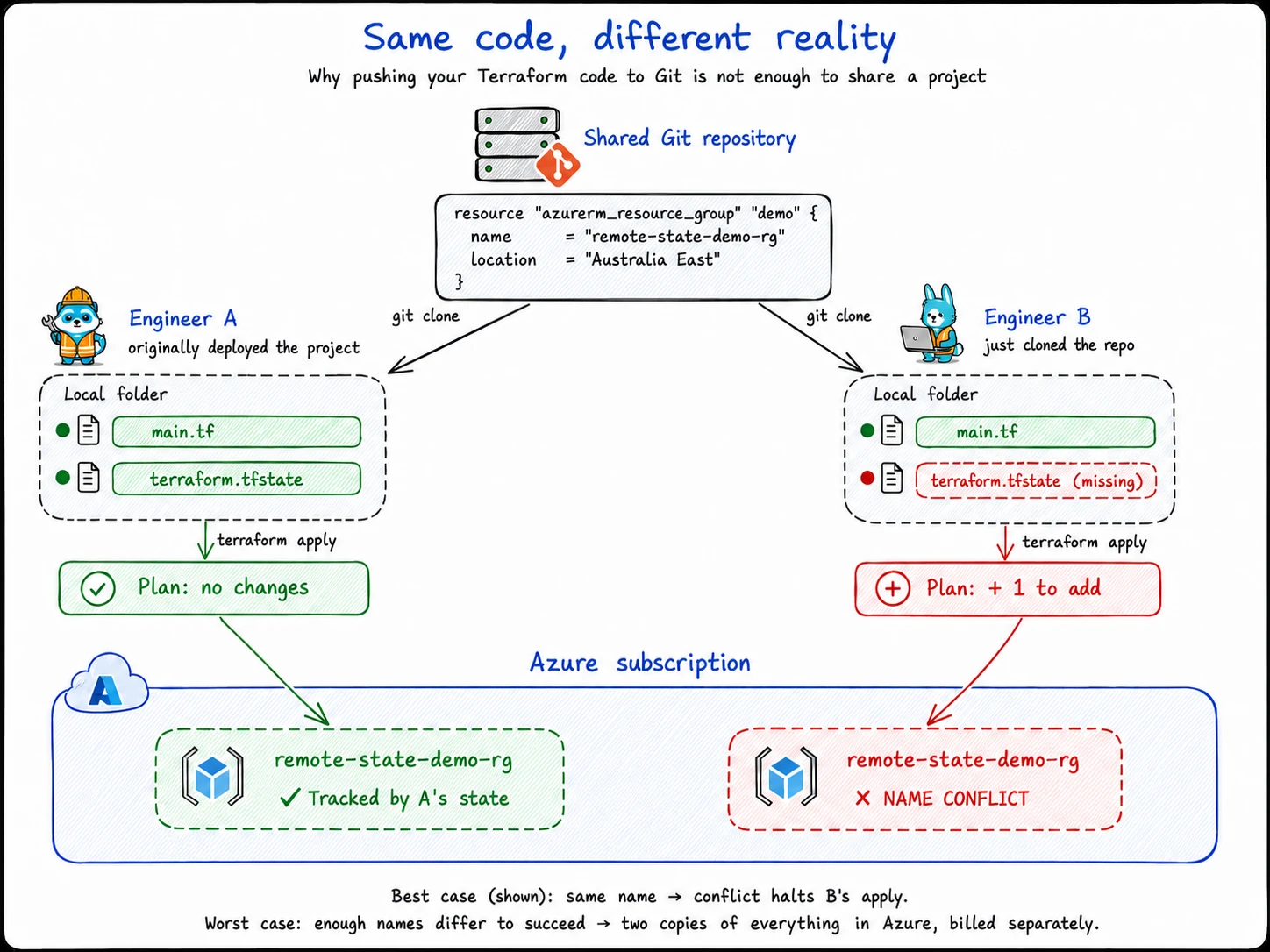
The code in Git was never the problem. The missing shared state was.
That is the gap remote state closes.
Your Terraform code can still live in Git. Your Azure resources still live in Azure. But the state file, which is Terraform’s memory, needs to live somewhere both engineers can reach.
On Azure, that somewhere is usually a Storage Account with a Blob Container.
In this article, we will create that Storage Account and Blob Container, point Terraform at it as a remote backend, migrate the existing local state into Azure, and verify the state file is now living in the cloud.
By the end, your code still lives in your folder, your resources still live in Azure, and your state file lives in a safe shared place that any teammate or pipeline can reach.
The Backend: Where Terraform Puts Its State
We have been describing the place where state lives as “the project folder” or “Azure Storage”. Terraform has its own word for this: the backend.
A backend is just the storage location Terraform uses for state. Up to this point, every project in this series has been using one without ever naming it: the local backend. When you run terraform init and Terraform creates terraform.tfstate next to your code, that is the local backend doing its job. It is the default, and it is the reason you have never had to think about it.
The local backend is one of several backends Terraform supports. The one we care about in this article is the azurerm backend, which stores state in an Azure Storage Account instead of a local file.
The swap looks like this:
Local backend
→ terraform.tfstate sits in your project folder

azurerm backend
→ terraform.tfstate lives as a blob in an Azure Blob Container
The thing to notice is what does not change. The Terraform code still describes Azure resources. The Azure resources still live in Azure. You still run terraform plan and terraform apply from your project folder. The only thing that moves is where Terraform reads and writes its state.
Once that mental model is in place, the rest of the article is mechanical. We need to do five things:
- Stand up a small starter project. Deploy a single resource group with local state, so we have a real
terraform.tfstatefile and a real Azure resource to work with for the rest of the article. - Create the backend storage in Azure. A Resource Group, a Storage Account, and a Blob Container, ready to receive the state file.
- Tell Terraform about the new backend. A small
backendblock in the configuration that points at the Storage Account and Blob Container we just created. - Run
terraform initand migrate. Terraform notices the new backend, copies the existing local state into Azure, and from that point on reads and writes state remotely. - Verify. Check that the state blob is sitting in the Blob Container, and that Terraform is still tracking the resource group we deployed in step one.
That is the whole article. The next section starts with step one: a small starter project that gives us something concrete to migrate.
Start With a Small Local Project
To migrate state, we need state. And to keep this article concrete instead of hypothetical, we are going to create a tiny Terraform project right now: one resource group, deployed with local state, that we will move to Azure storage later in the article.
If you already have a working Terraform project from an earlier article, you can use that instead and skip ahead. Otherwise, follow along.
Create the project folder
Make a new folder somewhere on your machine for this article:
mkdir terraform-remote-state-demo
cd terraform-remote-state-demo
Write the configuration
Create a file called main.tf with this content:
terraform {
  required_providers {
    azurerm = {
      source  = "hashicorp/azurerm"
      version = "~> 4.0"
    }
  }
}

provider "azurerm" {
  features {}
}

resource "azurerm_resource_group" "demo" {
  name     = "remote-state-demo-rg"
  location = "Australia East"
}
That is the whole project. One provider block, one resource group, nothing else.
If you usually deploy to a different region, change Australia East to whatever you prefer.
Sign in to Azure
Make sure you are signed in to the Azure subscription where you want to deploy:
az login
az account show
If you have multiple subscriptions, set the right one:
az account set --subscription "<subscription-id-or-name>"Initialise and apply
From inside the project folder, run:
terraform initTerraform downloads the Azure provider and sets up the backend. Look at the output and you will see a line that says Initializing the backend.... That is Terraform setting up the local backend we talked about in the previous section. You have been using it the whole time, this is just the first time you have had a reason to notice it.
You will also see a .terraform/ folder appear next to your main.tf.
Now apply the configuration:
terraform applyTerraform shows you a plan: one resource group to create. At the bottom you will see:
Do you want to perform these actions?
  Terraform will perform the actions described above.
  Only 'yes' will be accepted to approve.

  Enter a value:
Type yes and press Enter.
After a few seconds, Terraform finishes. The resource group exists in Azure. And in your project folder, a new file has appeared:
terraform.tfstateThat is the local state file. It is the thing we are about to move.
Where we are now
At this point, three things exist:
terraform-remote-state-demo/
├── main.tf
├── terraform.tfstate
└── .terraform/

Azure subscription
└── remote-state-demo-rg
The configuration is in your folder. The state file is in your folder. The resource group is in Azure.
This is the starting position. From here, everything we do is going to lift terraform.tfstate out of your project folder and put it into Azure storage, without losing track of the resource group we just created.
In the next section, we will build the place where state is going to live.
Create the Azure Storage Backend
Now we build the place where state is going to live.
The backend storage has three pieces, and they nest inside each other:
Resource Group
└── Storage Account
    └── Blob Container
        └── (the state file will live here as a blob)
A Storage Account is Azure’s top-level container for stored data. Inside a Storage Account, you can create Blob Containers, which are folder-like groupings for individual files. Each file inside a Blob Container is called a blob. For our purposes, the state file is a single blob, sitting in a single Blob Container, inside a single Storage Account.
You might be wondering: we just created a resource group in the previous section. Why not put the state storage in there?
The answer comes down to lifecycle. The resources Terraform tracks come and go. You will spin them up, tear them down, redesign them, replace them. That kind of churn is exactly what Terraform is for.
The state file is different. It is the only record of what Terraform manages, and it needs to outlive any single version of your infrastructure. If state lived in the same resource group as the resources it tracks, deleting that resource group would take both. You would lose the infrastructure and the record of what was there in a single command.
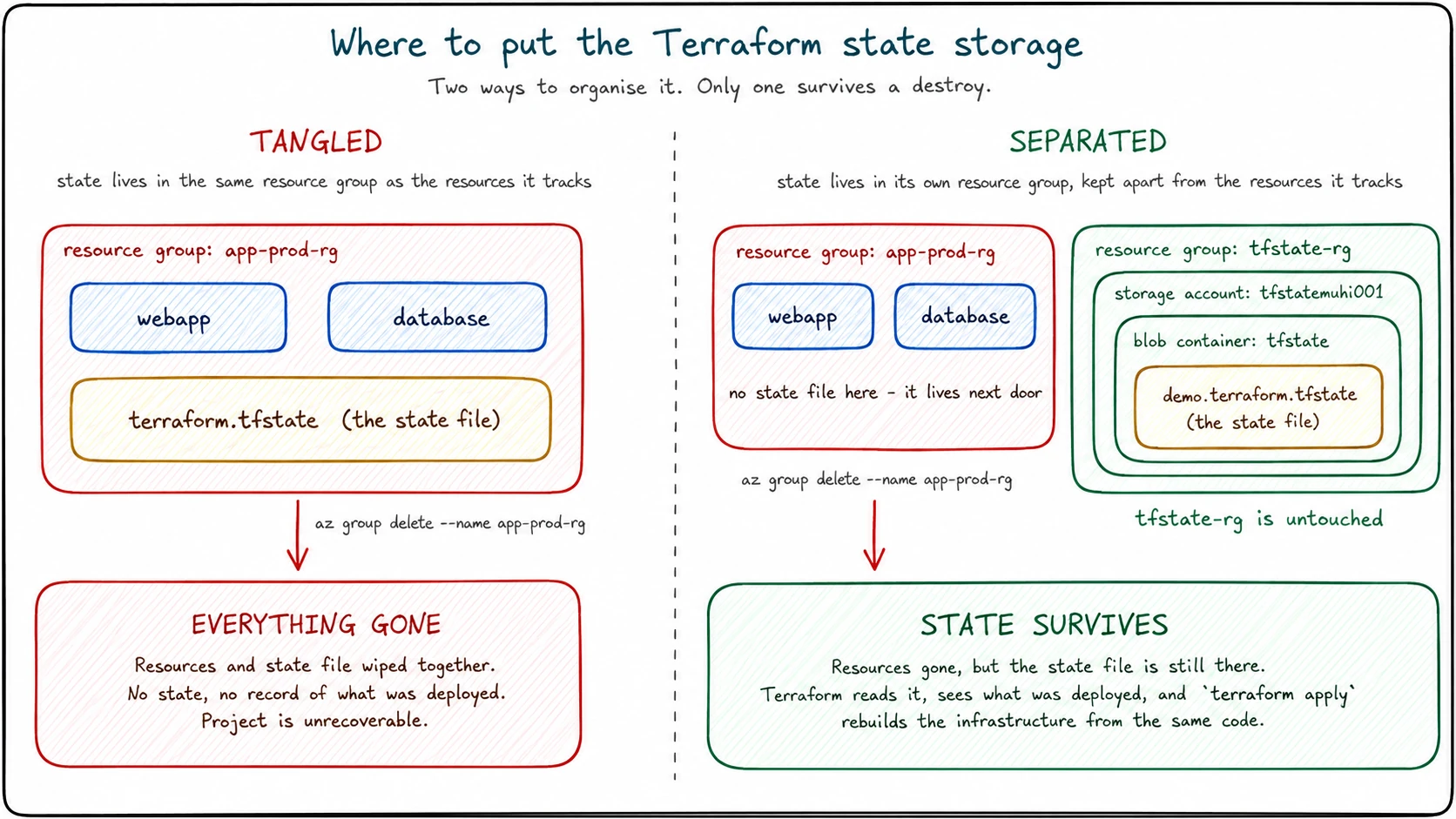
So we put the state in its own resource group, dedicated to holding Terraform state and nothing else.
Set some values
Set a few variables in your terminal to make the commands easier to read:
LOCATION="australiaeast"
RESOURCE_GROUP_NAME="tfstate-rg"
STORAGE_ACCOUNT_NAME="tfstatemuhi001"
CONTAINER_NAME="tfstate"
Storage account names need to be globally unique across all of Azure, and they must be 3 to 24 characters using only lowercase letters and numbers. The example above uses tfstatemuhi001. Replace it with your own unique name, something like tfstate plus your initials and a few digits. If you run the create command and Azure tells you the name is already taken, pick something else and try again.
Create the resource group
az group create \
  --name "$RESOURCE_GROUP_NAME" \
  --location "$LOCATION"
This resource group exists only to hold the state storage. Nothing else goes in here.
Create the storage account
az storage account create \
  --name "$STORAGE_ACCOUNT_NAME" \
  --resource-group "$RESOURCE_GROUP_NAME" \
  --location "$LOCATION" \
  --sku Standard_LRS \
  --kind StorageV2 \
  --min-tls-version TLS1_2
Standard_LRS is locally redundant storage, the cheapest tier. For learning purposes, this is fine. In a real production setup, you would think more carefully about redundancy, network restrictions, soft delete, and blob versioning. We are keeping the first version simple.
--min-tls-version TLS1_2 enforces modern encryption on any traffic to the storage account. TLS is the protocol that secures the connection between Terraform and your state, and TLS 1.0 and 1.1 have known weaknesses, so we require 1.2 as the floor.
Create the blob container
az storage container create \
  --name "$CONTAINER_NAME" \
  --account-name "$STORAGE_ACCOUNT_NAME"
The CLI may print a notice nudging you towards the modern Microsoft Entra ID authentication path. You can ignore it for now. The container will be created using your signed-in identity, which is all we need at this point.
This is where the Terraform state blob will eventually live. The container is empty right now.
Where we are now
Your Azure subscription now has two resource groups:
Azure subscription
├── remote-state-demo-rg
│   └── (the starter project from the previous section)
└── tfstate-rg
    └── Storage Account: tfstatemuhi001
        └── Blob Container: tfstate
            └── (empty, waiting for state)
The backend storage exists. The container is sitting empty. Terraform does not know any of this is here yet, because we have not told it.
That is the next step: point Terraform at this backend.
Tell Terraform About the New Backend
The storage is ready. Now we tell Terraform to use it.
Open main.tf and add a backend block inside the existing Terraform block at the top of the file. The full file should look like this:
terraform {
  required_providers {
    azurerm = {
      source  = "hashicorp/azurerm"
      version = "~> 4.0"
    }
  }

  backend "azurerm" {
    resource_group_name  = "tfstate-rg"
    storage_account_name = "tfstatemuhi001"
    container_name       = "tfstate"
    key                  = "demo.terraform.tfstate"
  }
}

provider "azurerm" {
  features {}
}

resource "azurerm_resource_group" "demo" {
  name     = "remote-state-demo-rg"
  location = "Australia East"
}
Replace tfstatemuhi001 with whatever you actually called your storage account.
What the backend block is saying
Four fields, and each one points at something we created in the last section. The first three you will recognise immediately:
resource_group_nameis the resource group that holds everything,tfstate-rg.storage_account_nameis the storage account itself.container_nameis the blob container we created, which we namedtfstate.
The fourth field, key, is new and needs a moment.
Think of a blob container as a folder, and the state file as a single file sitting inside it. Every file in a folder needs a name. The key field is the name Terraform will use for the state file once it writes it into the container. We chose demo.terraform.tfstate because this is the demo project.
That naming choice is doing more work than it looks. A single blob container can hold state files for many different Terraform projects, and key is how each project picks its own filename. A second project pointing at the same container would set something like key = "billing.terraform.tfstate", and the two state files would sit side by side as separate blobs, never interfering with each other. We only have one project right now, so the key value is just a label, but naming it deliberately sets up the habit for later.
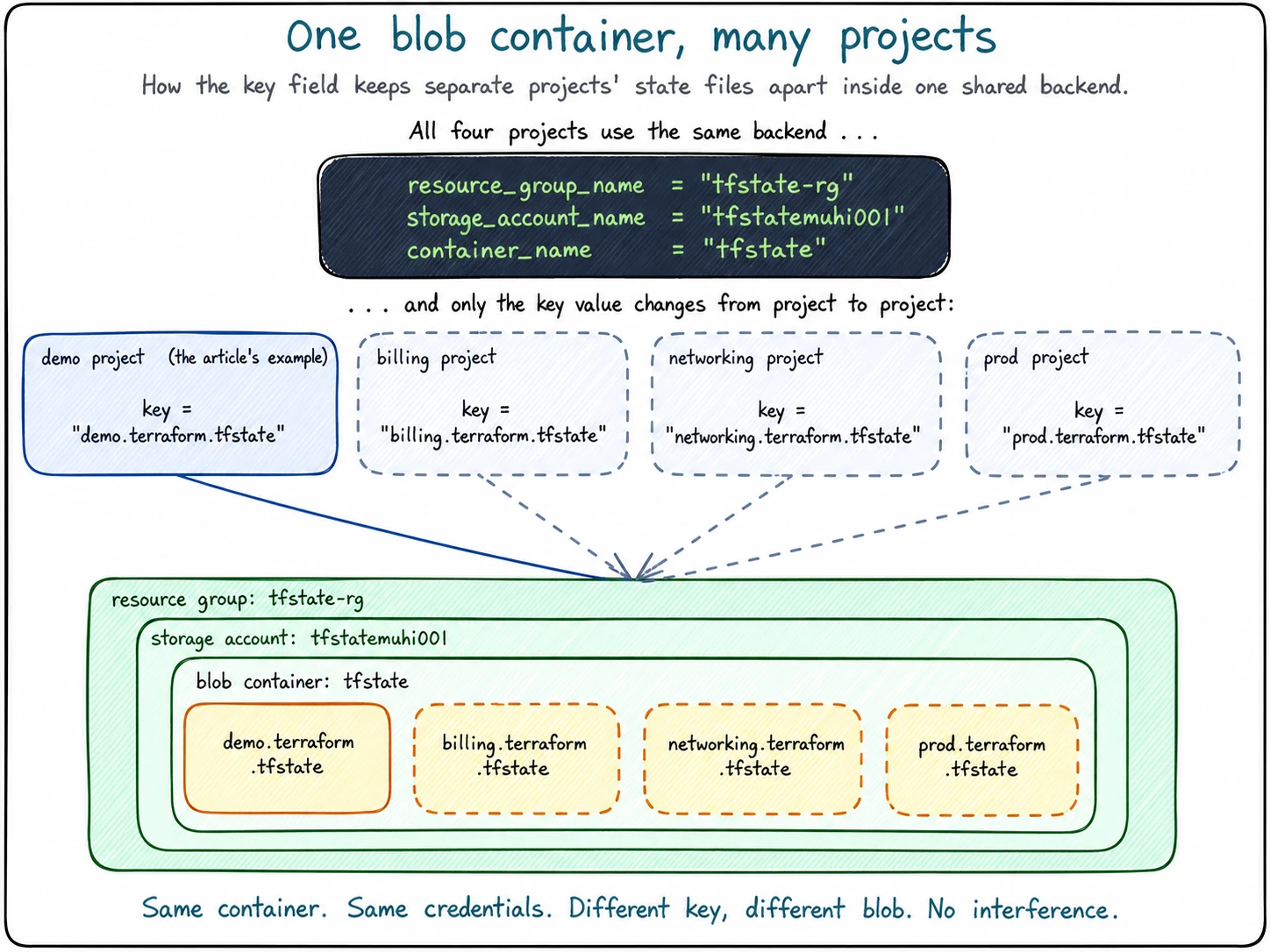
One thing the name does not mean: despite being called key, this field has nothing to do with encryption, passwords, or storage access keys. In Azure Blob Storage, “key” is just another word for “blob name”. Slightly unfortunate naming, but harmless once you know.
A note on hardcoded values
You may have noticed that the backend block has actual values typed into it (tfstate-rg, tfstatemuhi001, and so on), not variables. That is on purpose, and it is not optional.
Terraform configures the backend before it loads any variables, providers, or resources. The backend has to be set up first, because Terraform needs to know where to read and write state before it can do anything else. That means you cannot write storage_account_name = var.something here. It will not work.
For this article, hardcoded values are exactly right. In larger setups, people use a technique called partial configuration to pass these values in at terraform init time, but that is a topic for another article.
Where we are now
The configuration is updated, but Terraform has not done anything with it yet. The state file is still local. The blob container is still empty.
The backend block is just a declaration. To actually make Terraform use it, we need to run terraform init again. That is the next section, and it is where the state finally moves.
Run terraform init and Migrate the State
The backend block is in place. Now we make Terraform act on it.
From inside the project folder, run:
terraform initThis time terraform init does more than download a provider. Terraform reads the backend block, notices that the configuration has changed from “local backend” to “azurerm backend”, and realises there is already a terraform.tfstate file sitting in your folder from when you created the resource group earlier.
That puts Terraform in an interesting spot. It has state in the old place (local) and a new place it has been told to use (Azure). It does not move state without permission, so it asks you what to do:
Initializing the backend...
Acquiring state lock. This may take a few moments...
Do you want to copy existing state to the new backend?
  Pre-existing state was found while migrating the previous "local" backend to the
  newly configured "azurerm" backend. No existing state was found in the newly
  configured "azurerm" backend. Do you want to copy this state to the new "azurerm"
  backend? Enter "yes" to copy and "no" to start with an empty state.

  Enter a value:
This is the migration prompt. Read it carefully: Terraform is offering to copy your local state into Azure storage. If you say no, Terraform starts fresh with an empty remote state and forgets the resource group it deployed earlier, which is exactly what we do not want.
Type yes and press Enter.
Terraform copies the local state into the blob container, finishes initialising, and prints a success message:
Successfully configured the backend "azurerm"! Terraform will automatically
use this backend unless the backend configuration changes.
That is the moment the state file moves. From now on, every terraform plan and terraform apply reads from and writes to the blob in Azure storage, not the file on your disk.
Verify Terraform is still tracking the resource group
Before we go and look at the blob in Azure, let’s prove the migration actually worked from Terraform’s side. Run:
terraform planIf everything migrated correctly, the output should end with:
No changes. Your infrastructure matches the configuration.That sentence is doing a lot of work. It means Terraform read state from Azure storage, compared it to the configuration in main.tf, checked the real resource group in Azure, and found that all three agree. The resource group from the previous section is still being tracked. Nothing got lost in the move.
If Terraform had started with an empty state (because you said “no” to the migration prompt, or because something went wrong), this command would tell you it wants to create the resource group again, which would either fail with a name conflict or quietly create a duplicate. The fact that there are no changes is the verification.
See it in the portal
For the final piece of evidence, head to the Azure portal, open your storage account, and navigate to the tfstate container.
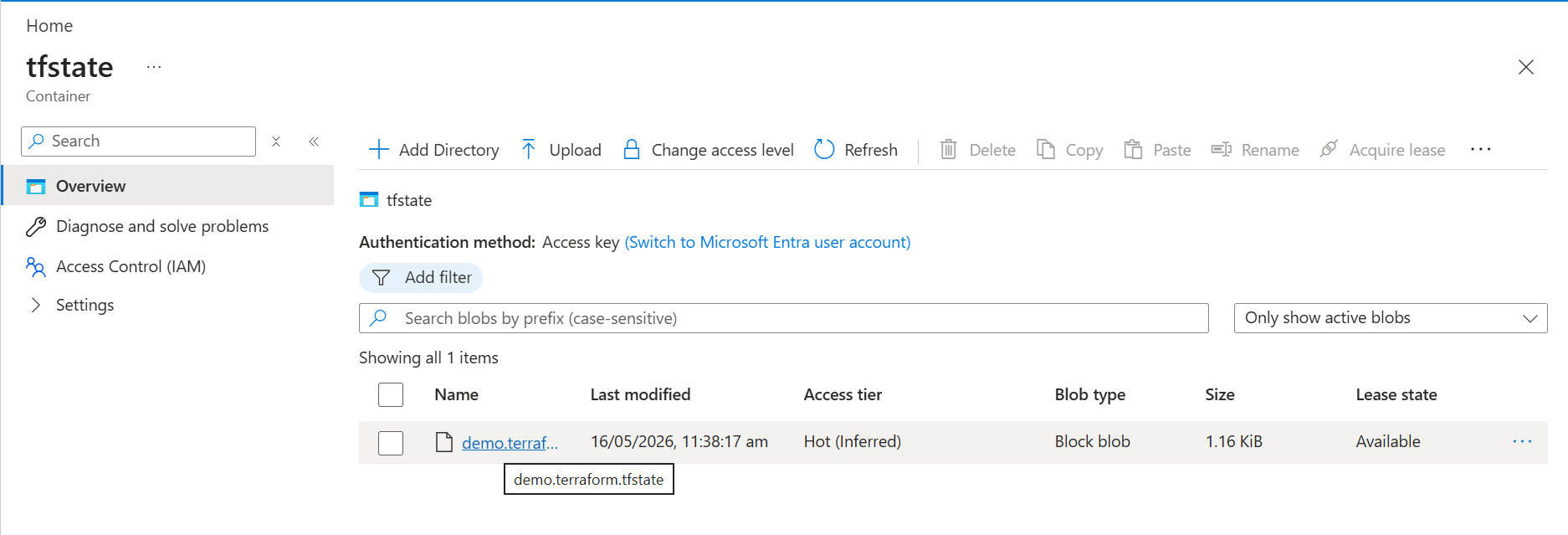
There it is. The blob is called demo.terraform.tfstate, which is exactly the key value we set in the backend block. The size is small, just over 1 KiB, because the project only tracks one resource. As the project grows, that file will grow with it.
Where we are now
The local state file is no longer the source of truth. The blob in Azure is.
terraform-remote-state-demo/
├── main.tf
├── terraform.tfstate          (still here, but no longer used)
└── .terraform/                (now contains backend metadata)

Azure subscription
├── remote-state-demo-rg
│   └── (the resource group, still tracked)
└── tfstate-rg
    └── Storage Account: tfstatemuhi001
        └── Blob Container: tfstate
            └── demo.terraform.tfstate   (the state file, now living here)
You will notice the local terraform.tfstate file is still sitting in your folder. Terraform left it behind on purpose, as a safety net in case the migration went wrong and you needed to fall back. From this point on, Terraform ignores it completely.
Clean up
If you followed along and built the starter project from scratch, you can now tear it down. Run:
terraform destroyTerraform will read state from Azure, compare it to the configuration, and propose deleting the resource group. Type yes to confirm. The resource group disappears from Azure, and the state blob updates to reflect that the project tracks nothing.
If you brought your own existing Terraform project to this article, do not run terraform destroy. That would delete the real infrastructure you came in with, which is not the point of the exercise. Just leave it running and move on.
Either way, the backend storage we created (the tfstate-rg resource group, the storage account, and the blob container) stays in place. Terraform never managed it, so terraform destroy does not touch it. That is exactly the lifecycle separation we set up for on purpose.
If you are done with the article entirely and want to remove everything, you can delete the backend resource group manually:
az group delete --name "tfstate-rg" --yesThat will take the storage account, the blob container, and the state blob down with it.
Where This Leads
Step back for a moment and look at what just changed.
When you started this article, Terraform’s memory of your infrastructure lived in a file on your laptop. If you lost the laptop, you lost the memory. If a teammate cloned your code, they got the configuration but not the state. If a pipeline tried to run terraform plan, it had nowhere to read state from.
Now that file lives in Azure storage. Any teammate with access to the storage account can read it. Any pipeline with the right credentials can use it. The same state powers every run, every machine, every environment. Terraform is no longer a single-laptop tool. It is something a team can actually share.
That is a significant ceiling lifted. But it is not the only ceiling.
Think back to Part 7, where you built your own modules from scratch. A small resource group module. A networking module with a virtual network and a subnet. That was the right way to learn what modules are and how they work, but it leaves an obvious question hanging: do you really have to keep doing that for every kind of infrastructure?
A real production networking module is not just a virtual network and one subnet. It is multiple subnets with their own address spaces, network security group associations, route tables, service endpoints, private endpoint subnets, DDoS protection toggles, DNS settings, peering configuration, diagnostic settings, and a long list of tags. The same is true for storage accounts, key vaults, Kubernetes clusters, app services, and almost everything else worth deploying.
Every team on Azure used to write all of that themselves. Every team got slightly different answers. Every team’s modules drifted from every other team’s modules. That is a lot of wasted effort across the industry.
Microsoft eventually noticed, and built a curated library of production-grade Terraform modules called Azure Verified Modules, or AVM. These are modules that follow Microsoft’s own standards for what good Azure infrastructure looks like, maintained by Microsoft, versioned, tested, and ready to consume.
The shape is exactly what you learned in Part 7. A module block, a source, some inputs, some outputs. The difference is that you are not writing the module yourself. You are pulling someone else’s well-tested implementation off the shelf.
In the next article, we will rewrite this same kind of project using an Azure Verified Module. Same Terraform language you already know. Same backend you just configured. Different way of getting things done.
That is the path forward: state lives somewhere safe, modules come from somewhere trusted, and your Terraform code starts to look a lot more like what professional teams actually write.